





 Support Center
 Contact us
"HiTooler File Recover" FAQs
How to recover permanently deleted files from computer?
1. Install "HiTooler File Recover". Be careful not to install the software on the disk where the deleted files are located, otherwise the deleted files may no longer be found. You can choose to install it on another disk or an external disk.
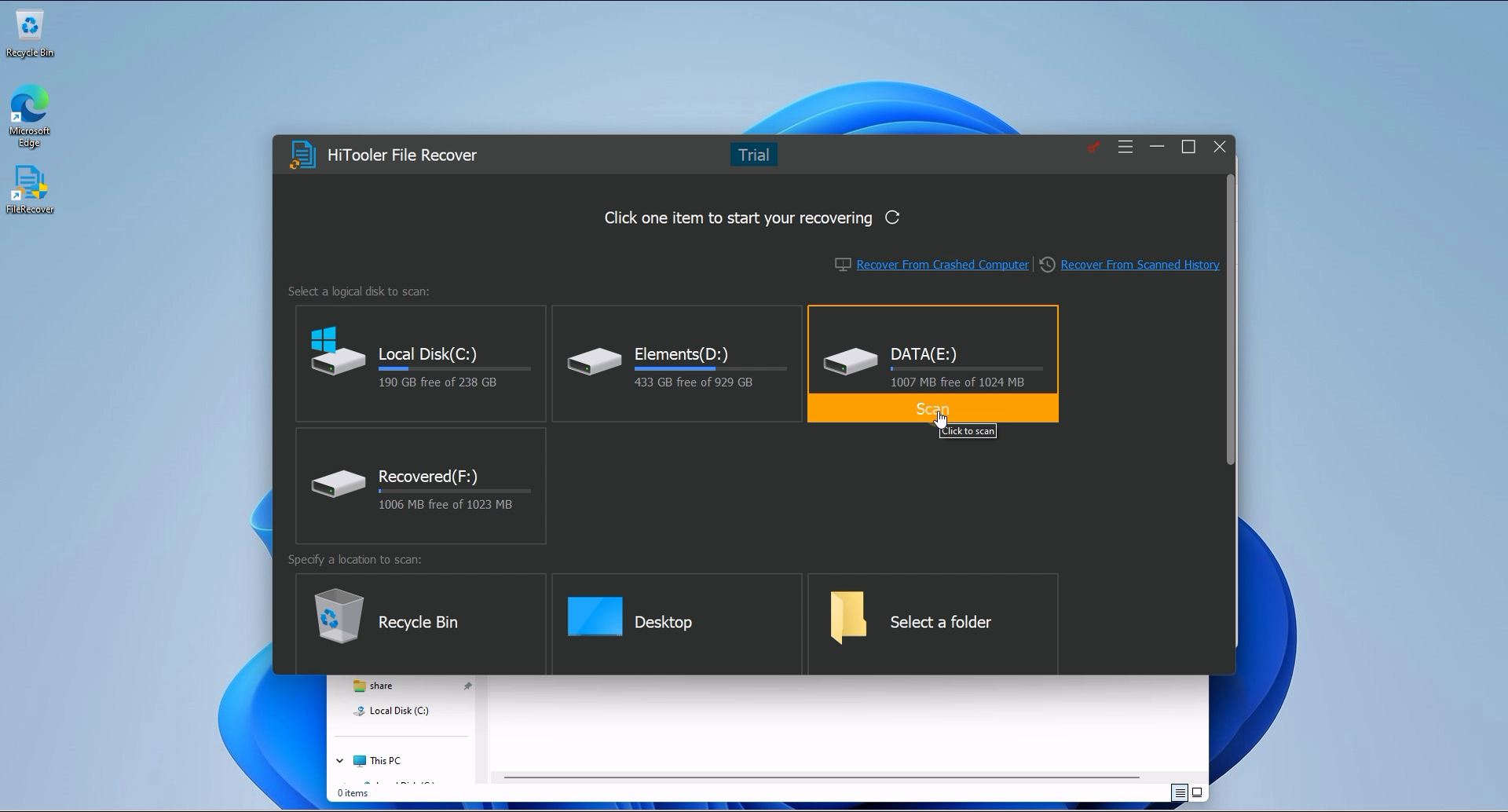
2. Open "HiTooler File Recover", find the disk where the deleted files are located, and click "Scan". The scanning time will vary depending on the disk size and disk performance.
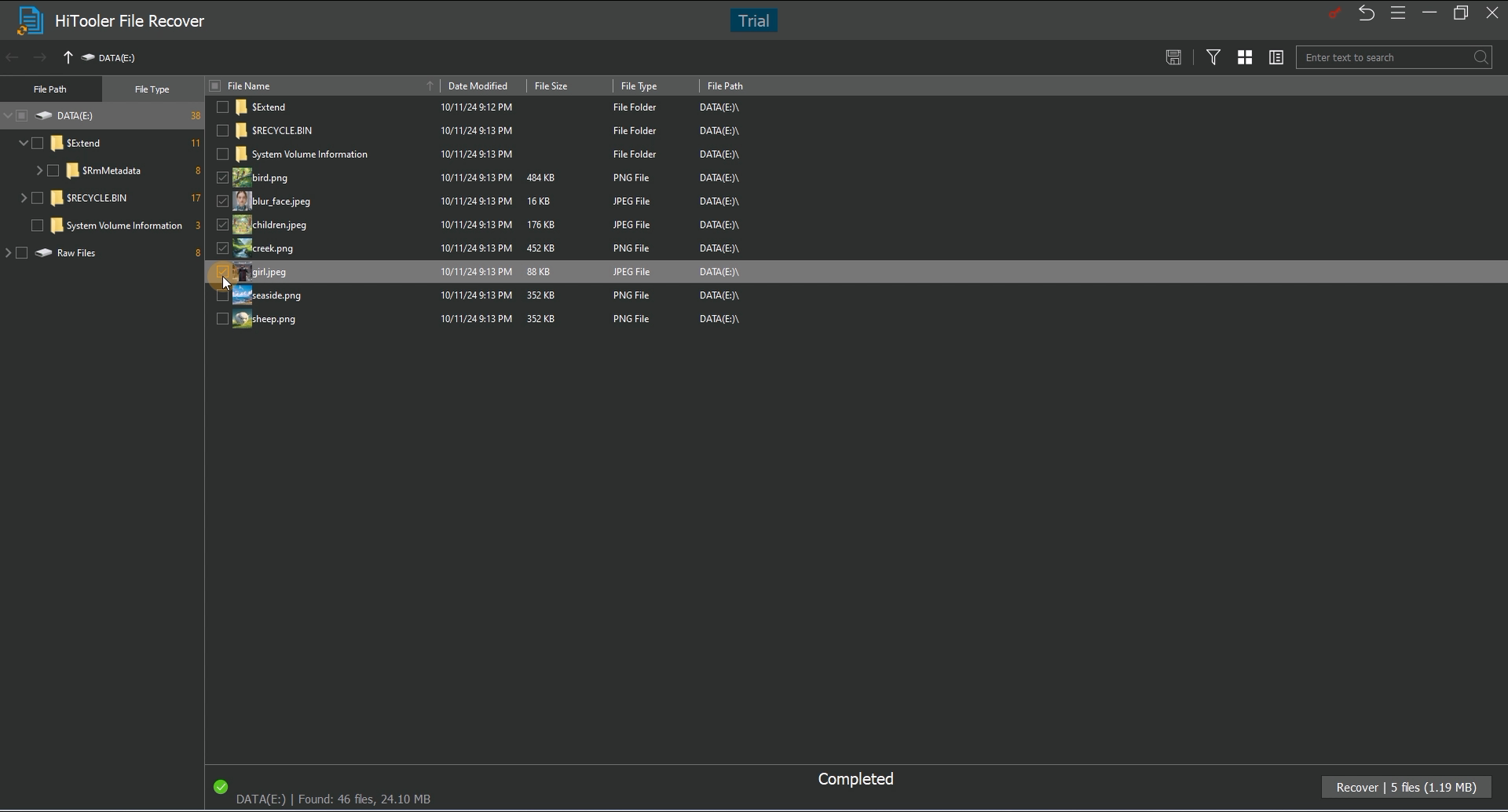
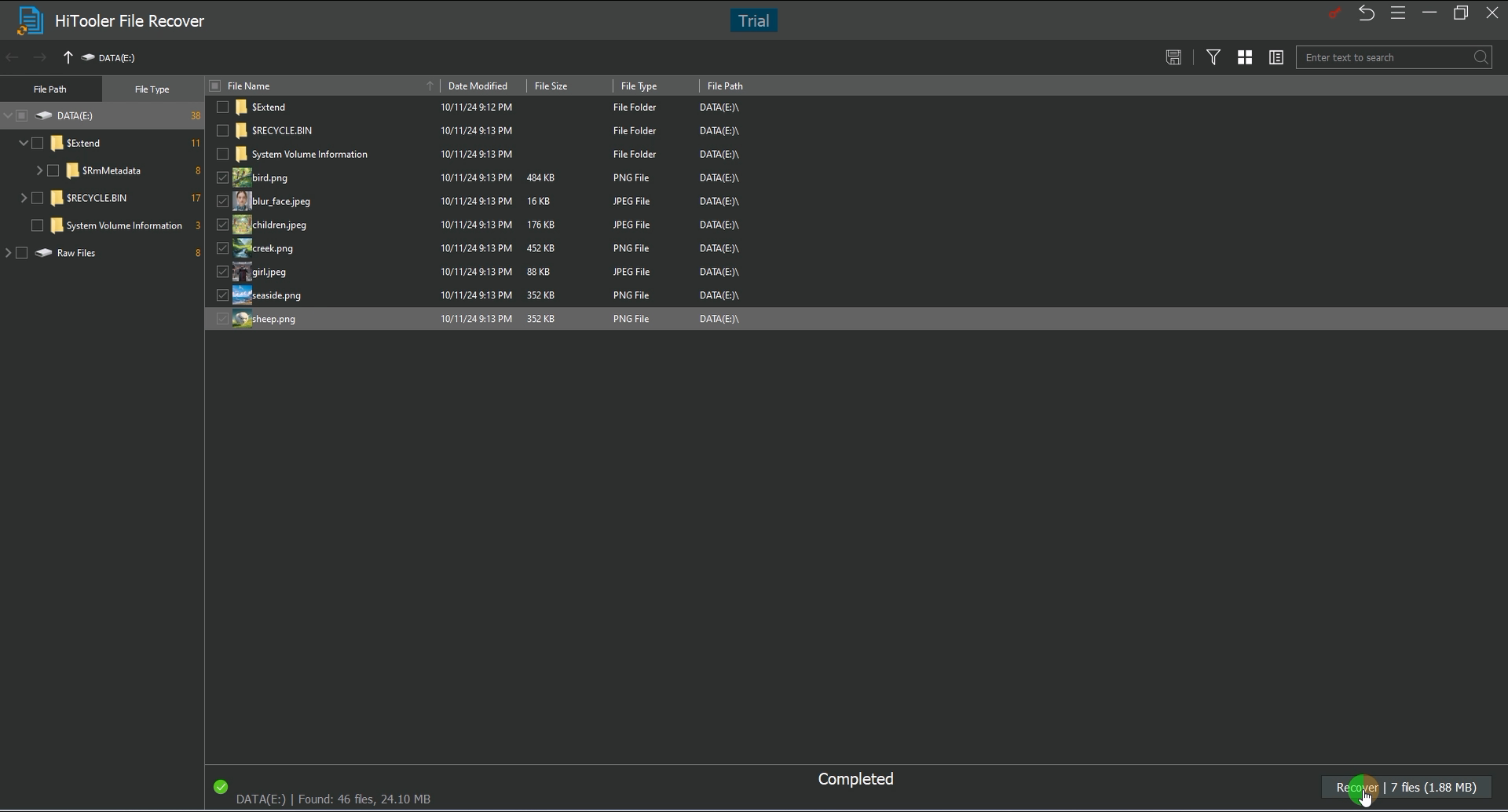
3. After the scan is completed, you can search for deleted files according to the folder structure on the left side of the scan result interface, or you can directly enter the file name in the search box to search.
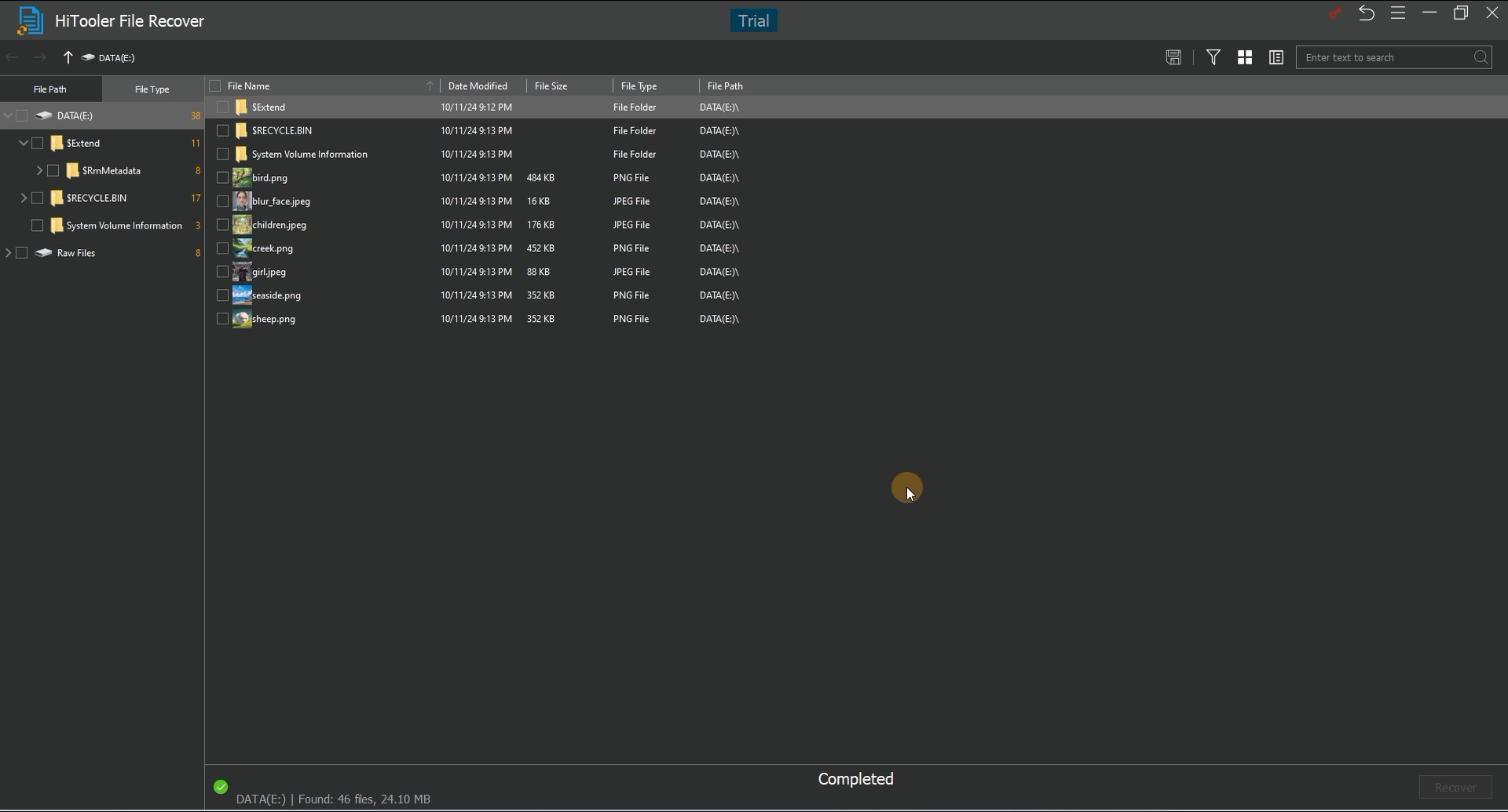
4. After finding the deleted file, double-click it to preview it. Note that only some file types are supported for preview.
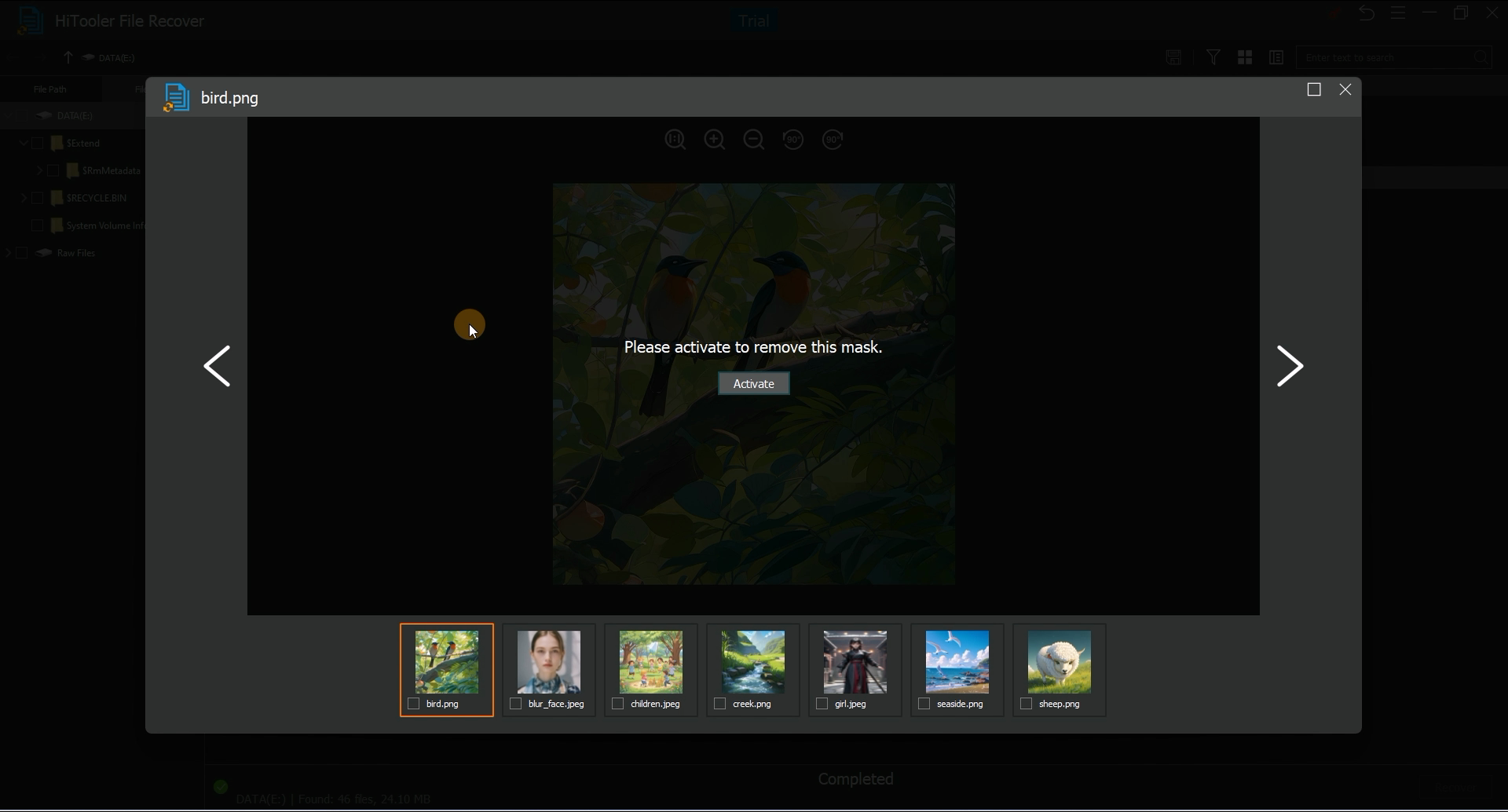
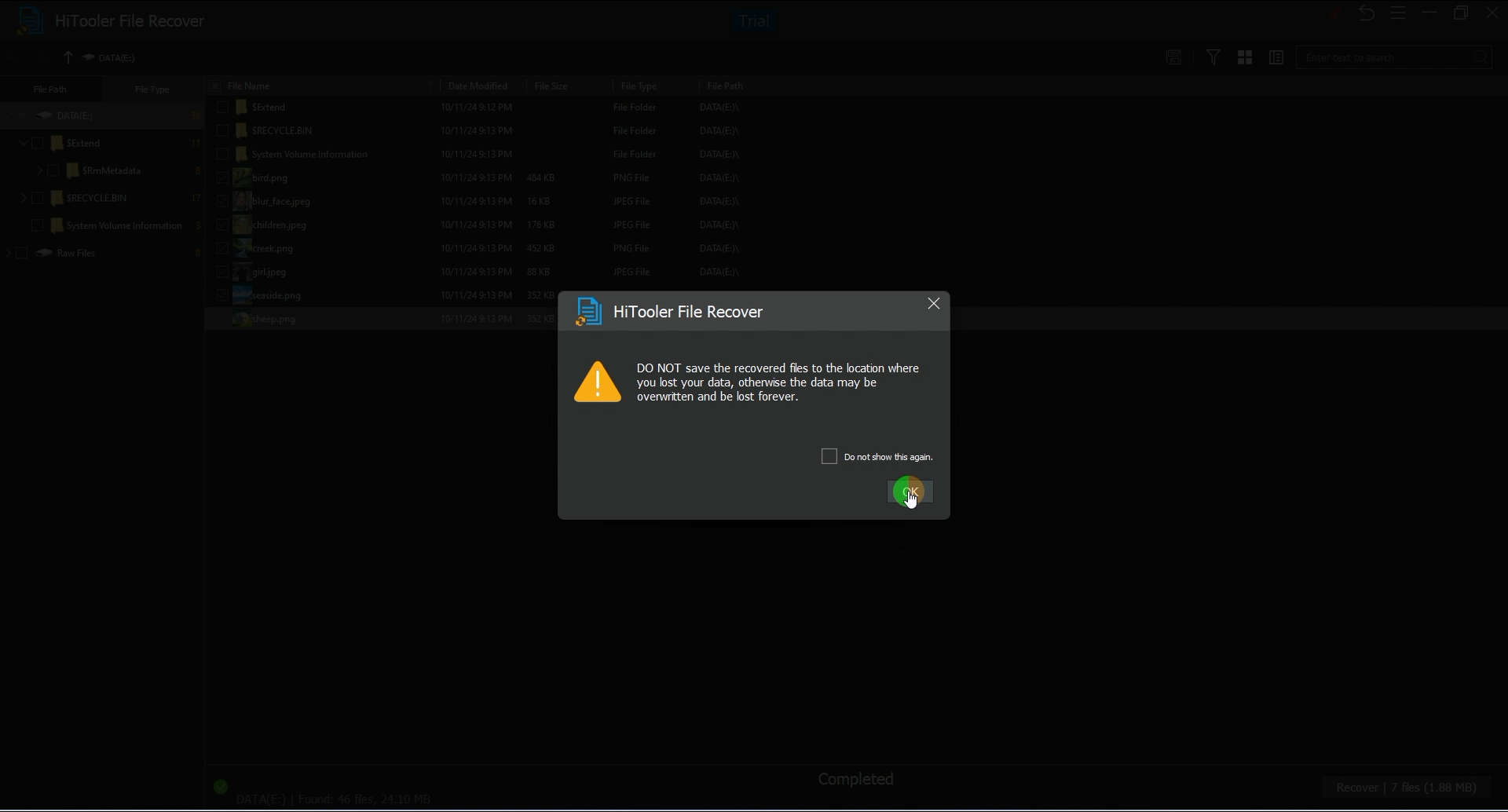
5. Select the files to be recovered and click "Recover" to recover them. Note that when recovering, you need to specify the directory for storing the recovered files. The disk where the specified directory is located cannot be the disk where the deleted files are located. You must select a directory on another disk.