







 Support Center
 Contact us
"HiTooler Video Inpainter" FAQs
How to remove the background of a video?
1. Download and install "HiTooler Video Inpainter", and open it after installation. If it is already installed, you can open it directly.
2. Click the Import button or drag a video file to the video display area to open a video.

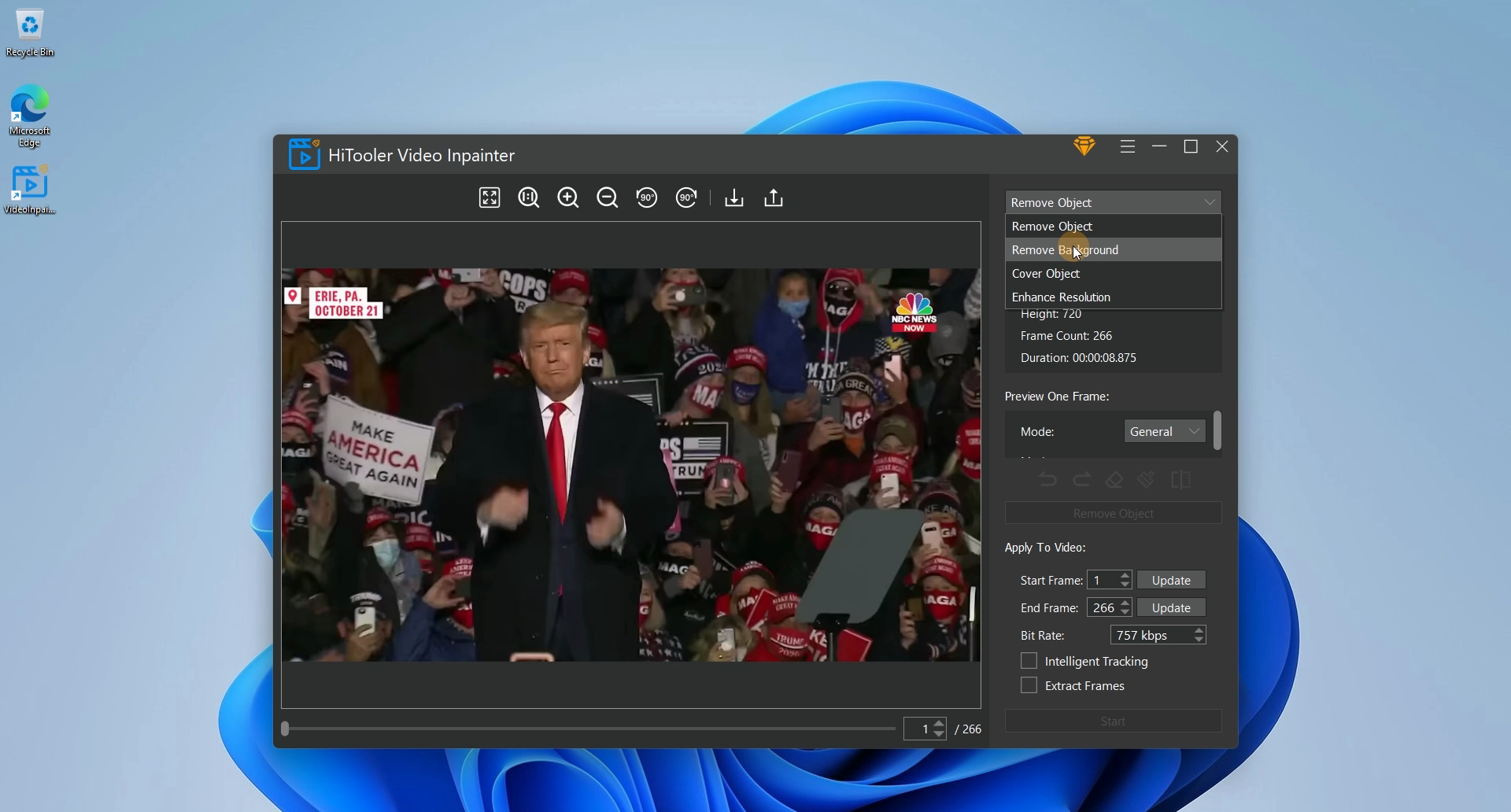
3. Click the drop-down box at the top of the right panel and select the mode as "Remove Background".
4. In the "Preview One Frame" area, select the appropriate mode. Among them, the "General" mode is used for videos with simple backgrounds, the "Human" mode is used for videos with humans in the foreground and simple backgrounds, the "Human - Fast" mode is used for quickly removing the video background with humans in the foreground and low precision requirements, and the "Mask" mode is used to accurately remove the video background outside the mask area.

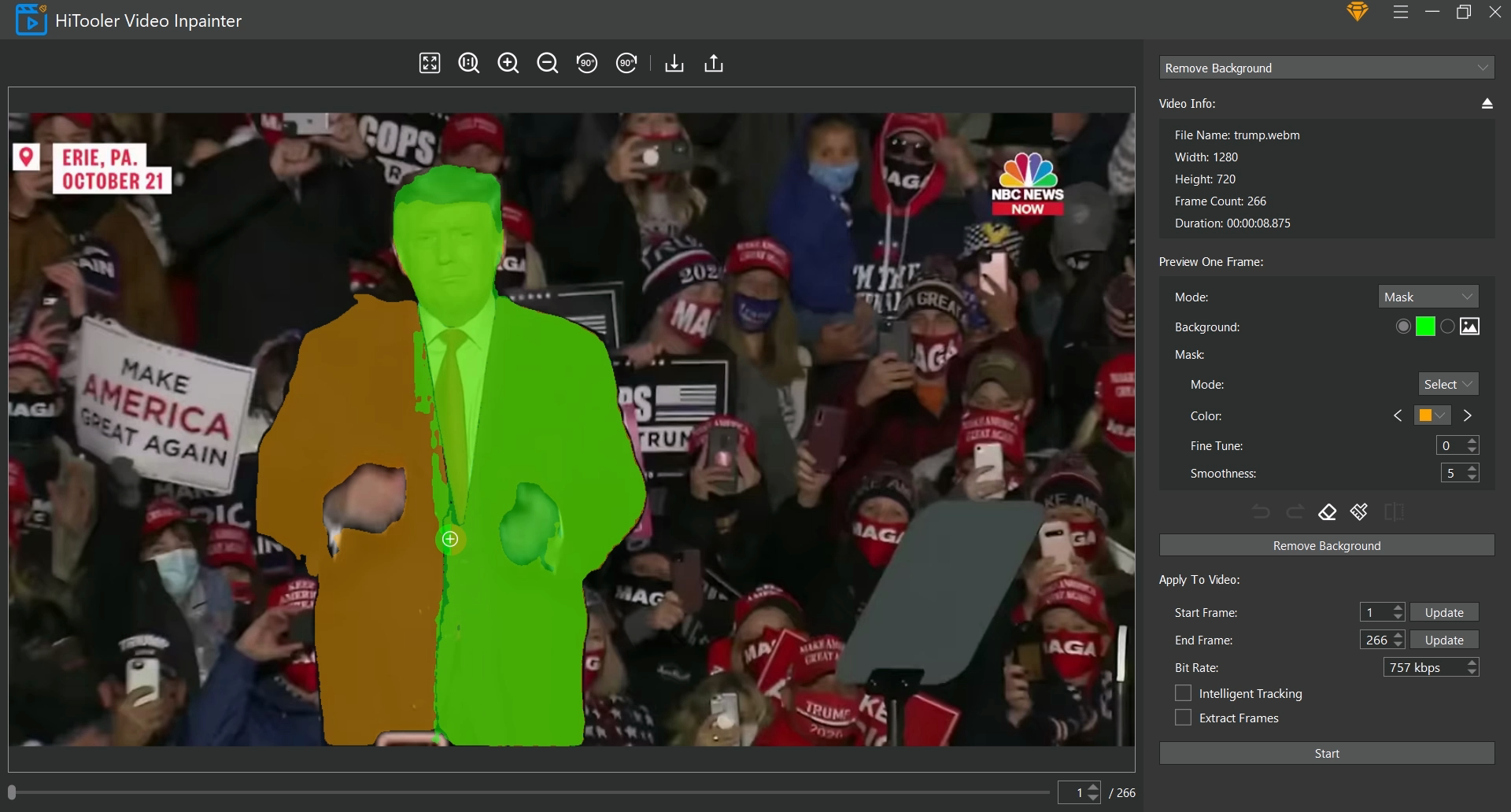
5. If you select the "Mask" mode, you need to select or draw a mask in the video display area on the left. The area outside the mask will be considered as the background and will be removed. Select the "Select" mode for the "Mask" mode. At this time, you can quickly select the object to be retained in the video display area on the left by moving the mouse. After selecting, click the left mouse button. If the mask selected by moving the mouse does not cover the entire object to be retained, you can select the "Mask" mode as "Draw" to manually supplement the mask. If the mask selected by moving the mouse covers the area outside the object you want to keep, you can click the "Eraser" icon to enter the delete mode and manually delete the unwanted area. Click the "Eraser" icon again to exit the delete mode. Note that if you are in the delete mode and the "Mask" mode is in the "Select" mode, the mask of the area you selected will be deleted. Check the "Intelligent Tracking" checkbox in the "Apply To Video" area.


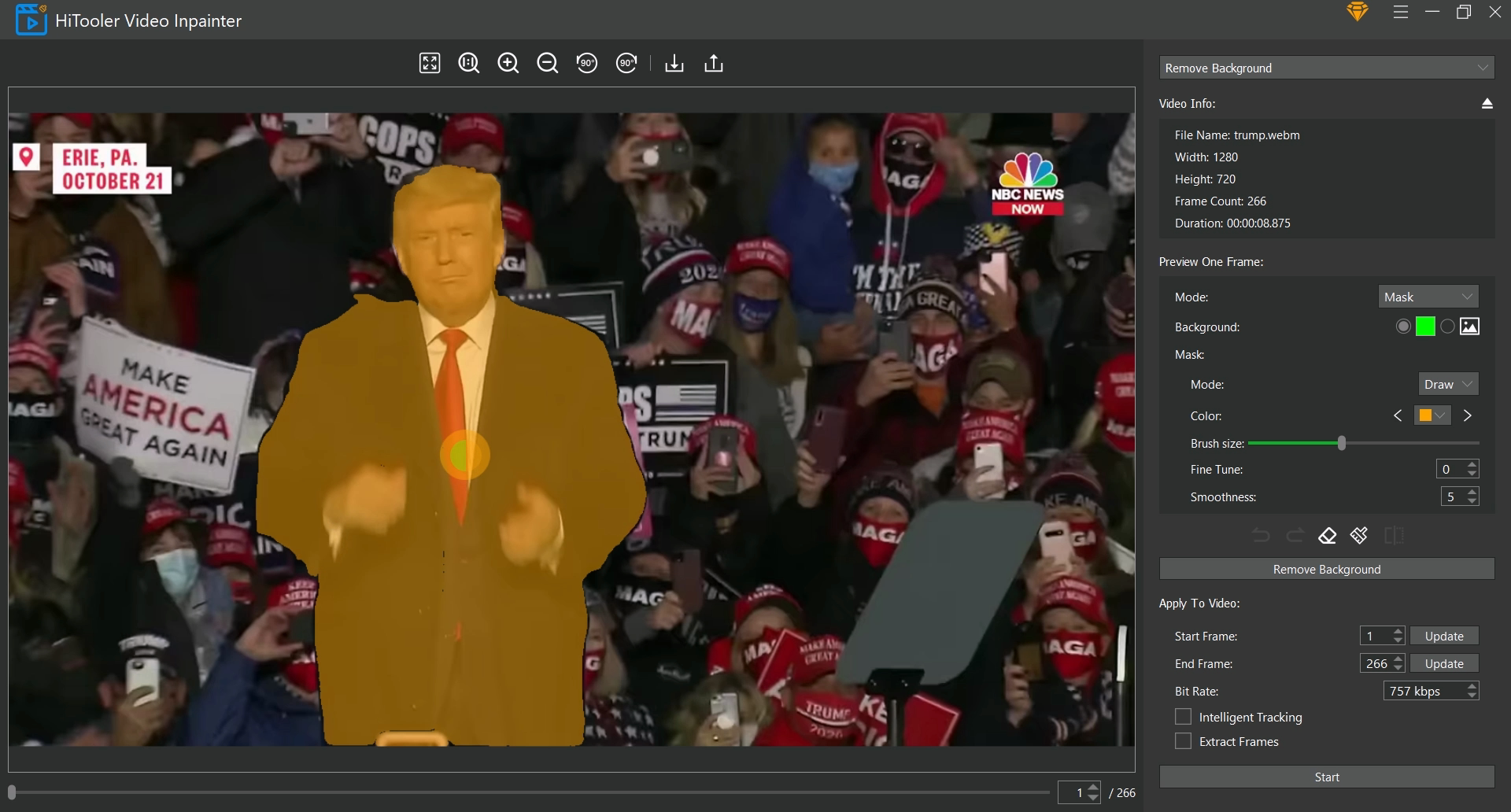

6. Finally, click the "Start" button and wait for completion.

