Click to Install
Please Note
The website language does not match your browser language. You can use this menu to change the website's display language.
HiTooler File Finder
Quickly find any file on macOS.
HiTooler File Recover
Recover data from PC.
HiTooler GPS Mocker - Android
Change the device location to anywhere you want.
HiTooler Image Inpainter
Remove or cover any object on the image, remove image background, enhance the image resolution, and restore human faces.
HiTooler Video Inpainter
Remove or cover any object in the video, remove video background, enhance the video resolution, and restore human faces.
HiTooler Media Converter
Convert video, audio and image file formats.
1. Download and install "HiTooler File Finder", and open it after installation. If it is already installed, you can open it directly.
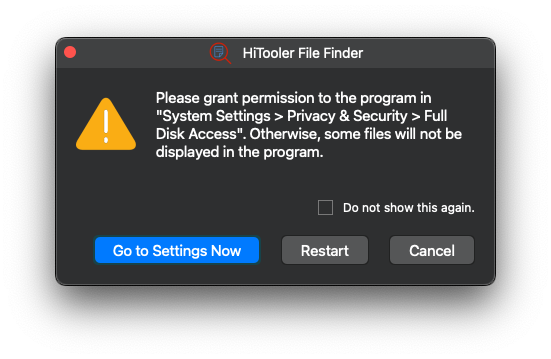
2. Grant the software full access to your disk.
3. Wait for the software to finish indexing all files on your system.
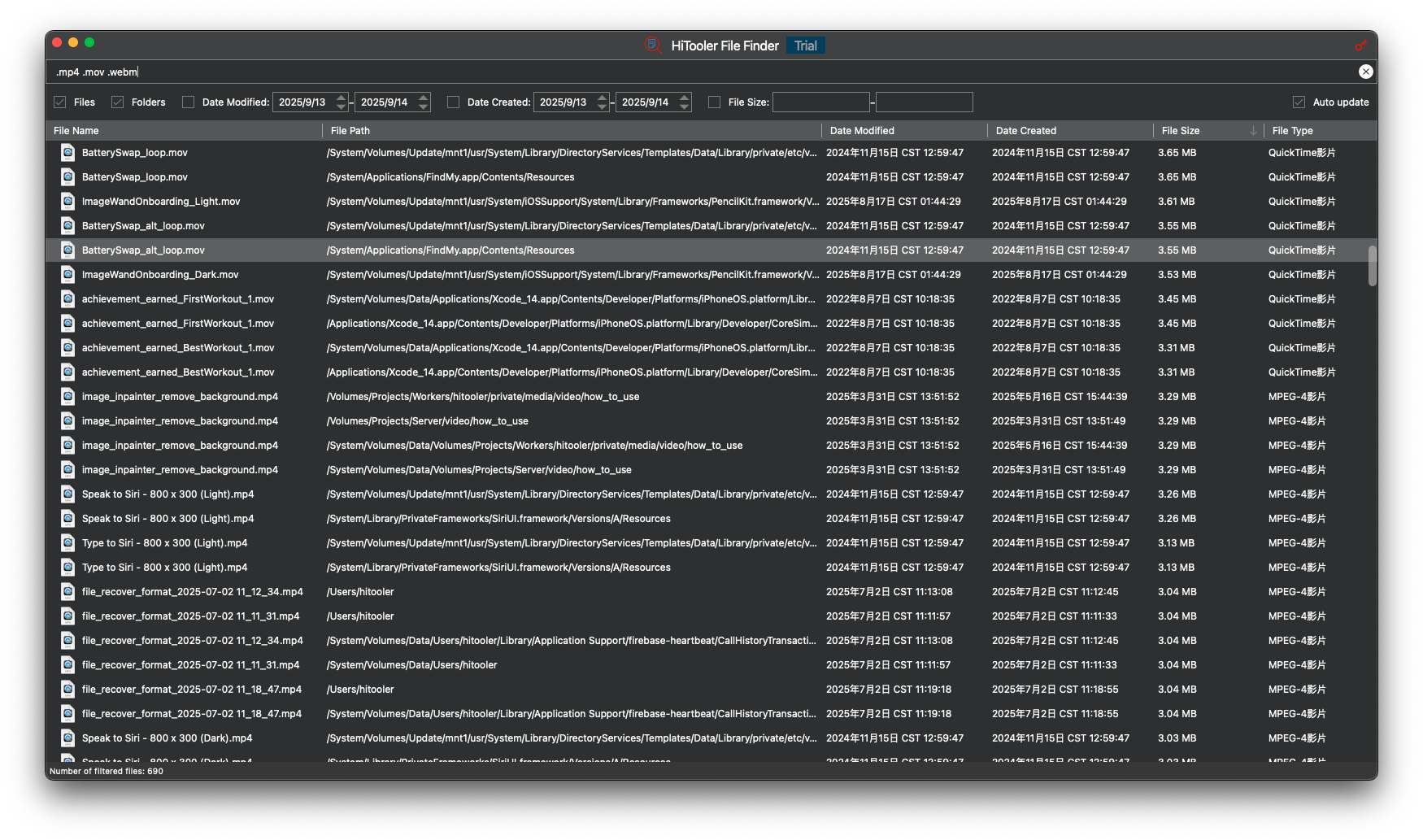
4. Enter the video file extension (e.g., .mp4, .mov, .m4v, etc.) in the search box above. A list of matching files will appear below.
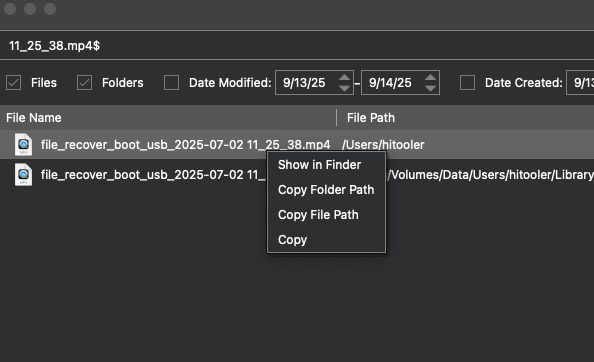
5. Right-click a file in the list to perform the desired action in the context menu that appears.








 Support Center
 Contact us